
How to Create AI Voiceovers for Amazon Product Videos with the Pollo AI Voice Generator
Learn how the Pollo AI voice generator helps you create natural voiceovers for Amazon product videos, from writing a script and choosing a voice to syncing narration with product footage.
A product video can look great and still leave shoppers with questions if the narration is hard to follow or doesn't match what's on screen. A good voiceover explains the features that matter, shows why they're useful, and gives viewers time to take in the product.
The Pollo AI voice generator turns written scripts into spoken audio, so you don't have to record every line yourself. Here's how to use it for Amazon product videos and avoid some common voiceover mistakes.
Why Use the Pollo AI Voice Generator?
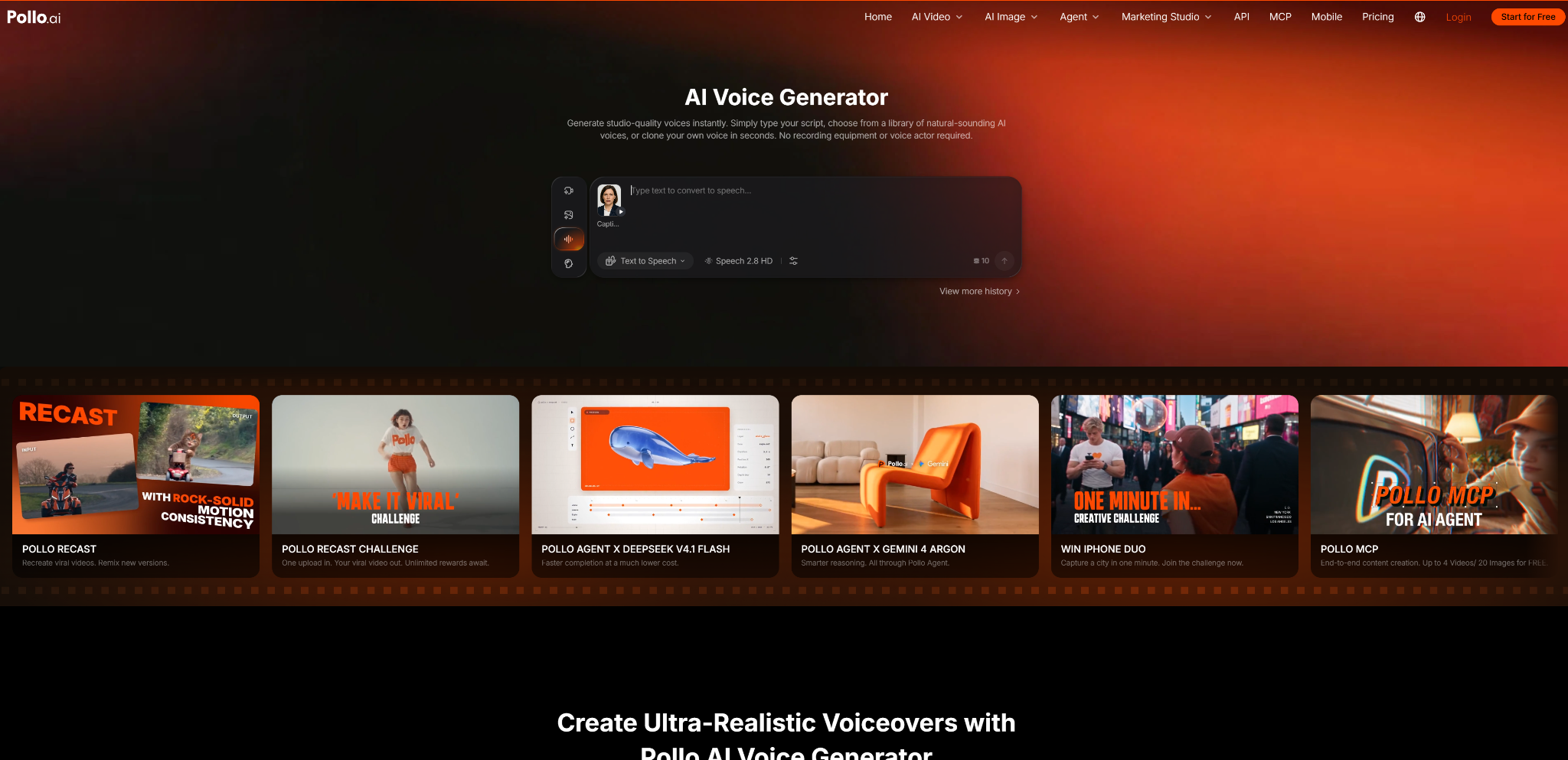
The Pollo AI voice generator is a text-to-speech tool that converts a written script into audio. For Amazon sellers who don't have recording equipment or a voice actor on hand, it's a straightforward way to add narration to product videos.
Explain the benefits, not just the specifications. Shoppers can already see the product, so the voiceover shouldn't simply read out everything in the listing. Use it to explain what a feature does, how it helps, or why it matters. For example, rather than listing a storage container's dimensions, explain what fits inside and where it can be used. Keep the script focused on details that help shoppers understand the product.
Choose a voice that suits the product. Pollo AI offers more than 100 AI voices, with filters for language, accent, gender, age, and tone. That gives sellers room to find a voice that fits their audience without hiring voice talent for every listing. Preview a few options before deciding. A clear, conversational voice is often a better fit for a practical product demo than an exaggerated, sales-heavy delivery.
Make revisions without recording everything again. Product details and messaging can change, especially when you're managing several listings or creating different versions of a video. With text-to-speech, you can edit the script and generate new audio instead of arranging another recording session. You may still need to adjust the timing in your video editor, but updating the narration itself is straightforward.
Keep the narration connected to the demo. Pollo AI supports adding AI voiceovers to video projects, which can help keep the audio and visuals together in your workflow. The important part is deciding what the viewer should see while each line plays. Explain a feature when it appears, and leave complicated details on screen when viewers need a moment to read them.
How to Create an AI Voiceover with Pollo AI Voice Generator
Step 1: Write a Script That Sounds Natural When Spoken
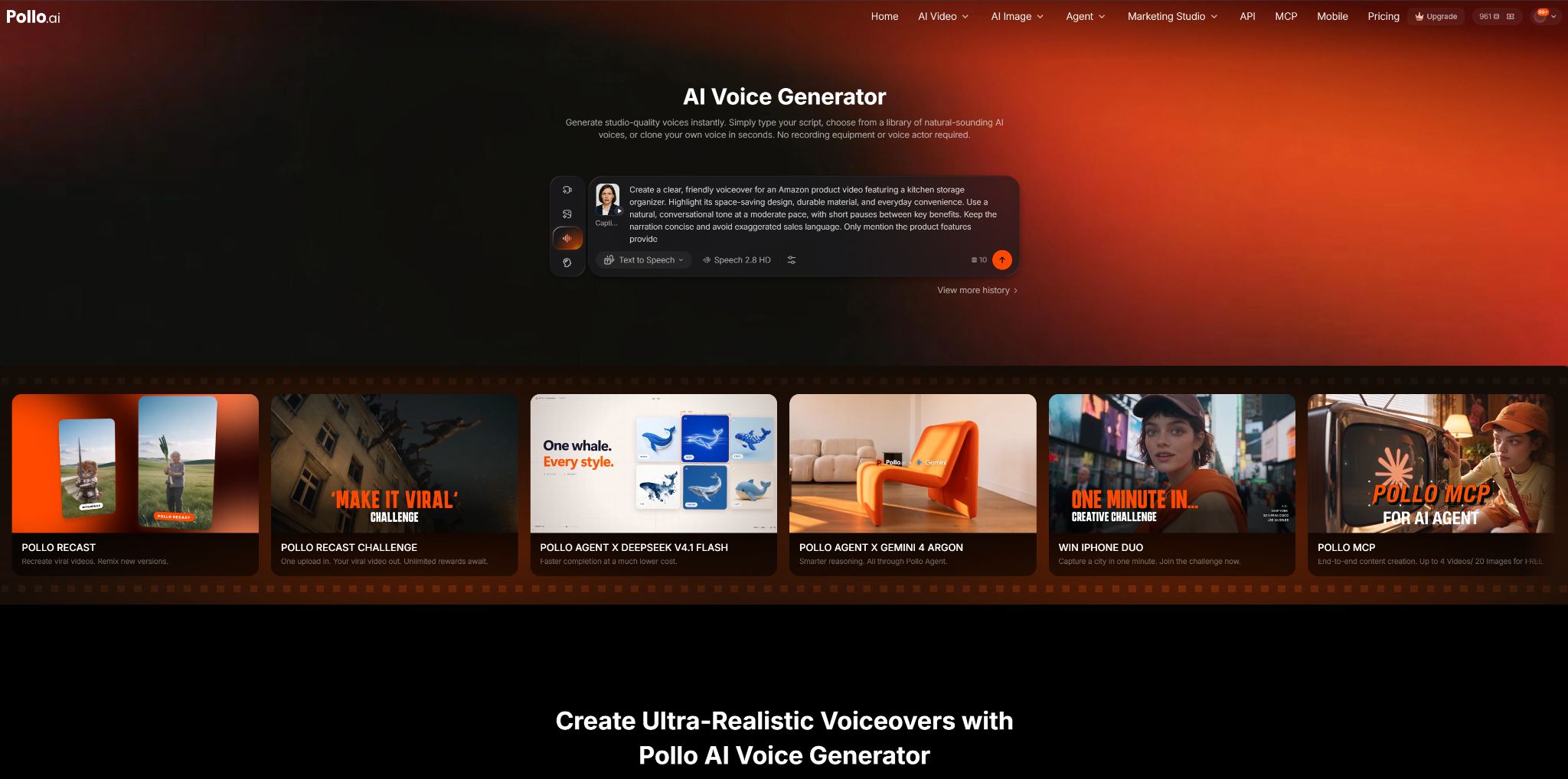
Amazon product listings aren't written like conversations. Reading one word for word can make a voiceover sound stiff and cram too much information into a short video.
Start with the product's main benefit, then choose two or three features worth explaining. Keep sentences short and use everyday language. Read the script aloud before generating audio. If you run out of breath or stumble over a sentence, simplify it.
For example, instead of saying, “Constructed from durable materials, this organizer provides a convenient solution for storing a variety of household essentials,” try “Keep everyday essentials in one place. The sturdy organizer fits neatly on a shelf or countertop.”
Only include claims you can verify from the product information. A smoother script isn't worth misleading shoppers.
Step 2: Choose a Voice That Fits the Product
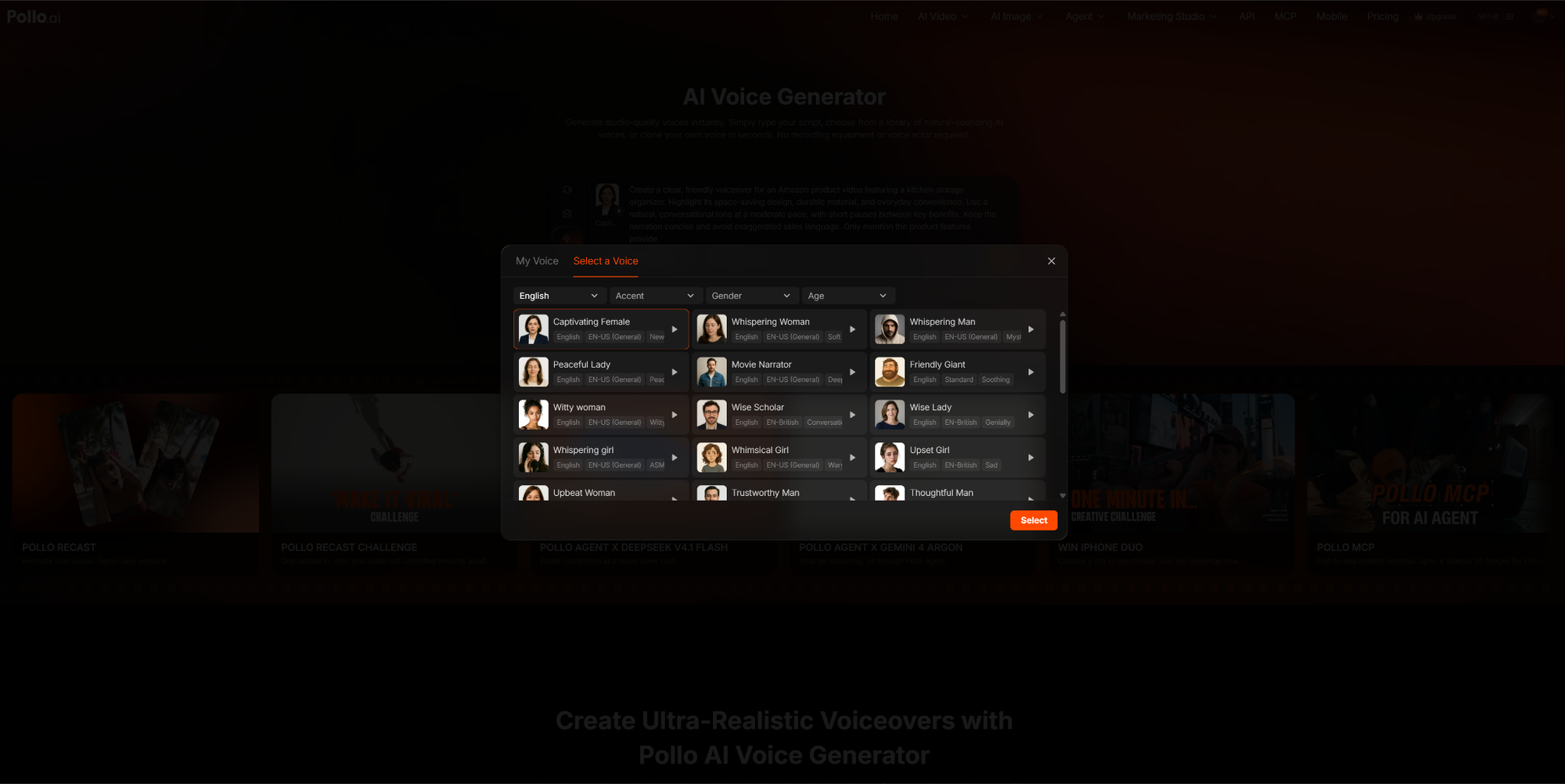
Open the Pollo AI voice generator, enter your script, and browse the available voices. Use the filters to narrow your options by language, accent, gender, age, or tone.
Don't choose a voice based on realism alone. Think about how it will sound alongside your footage and whether its pace suits the product. A relaxed delivery may work for a home organization demo, while a more energetic voice may suit a quick product introduction.
Preview a few options before settling on one. If you're producing videos for several listings under the same brand, using a consistent voice can help the videos feel more cohesive.
Step 3: Generate and Check the Audio

Generate the voiceover and listen to the entire result before adding it to your video. Pay attention to brand names, product terminology, measurements, and pauses. Numbers and abbreviations can sound awkward when read aloud, even if they look fine in the script.
If a line sounds unnatural, fix the wording first and generate it again. Adding commas or breaking up a long sentence may help the narration flow better.
For longer scripts, generating shorter sections can make revisions easier because you won't need to replace the entire recording when one sentence changes. Once you're happy with the result, download the audio for your video workflow.
Step 4: Match the Narration to the Footage
Add the generated audio to your video project and check how it lines up with the product shots. If the voice explains a feature before viewers can see it, they may miss the connection. If it describes something that has already disappeared from the screen, the explanation can feel disconnected.
You don't need to narrate every detail. Show measurements, model numbers, and other specifications on screen when they're easier to read than to hear. Use the voiceover to explain what those details mean for the buyer.
Leave a little breathing room between points, too. A short pause gives viewers time to take in a close-up or watch a feature in action. If the narration feels rushed, shorten the script rather than trying to squeeze every detail into the same video.
Final Checks Before Publishing
Watch the finished video on both a phone and a computer. Make sure the voice is clear at a normal volume and that the narration doesn't compete with background music or sound effects.
Check the ending carefully. The last sentence shouldn't continue after the final shot, and the video shouldn't cut off before the narration finishes. If the timing feels off, trim the script or adjust the footage before publishing.
Finally, check the spoken claims against the actual product and listing. The voiceover should make the product easier to understand, not promise features or results that it can't deliver.
Conclusion
A useful product voiceover does more than fill the silence. It helps shoppers understand the features that matter while the footage shows them in action. A focused script, a suitable voice, and careful timing will usually make a bigger difference than trying to fit in every product detail.
If you're producing videos for multiple Amazon listings or regularly updating existing ones, the Pollo AI voice generator is worth trying. It lets you turn scripts into audio without recording each version yourself. You can start with one product video, see how well the narration fits your footage, and decide whether it makes sense for your wider workflow.